
Everything starts here.
Spark Setup
Go from download to creation in minutes.
Using Linux? View setup guide
-
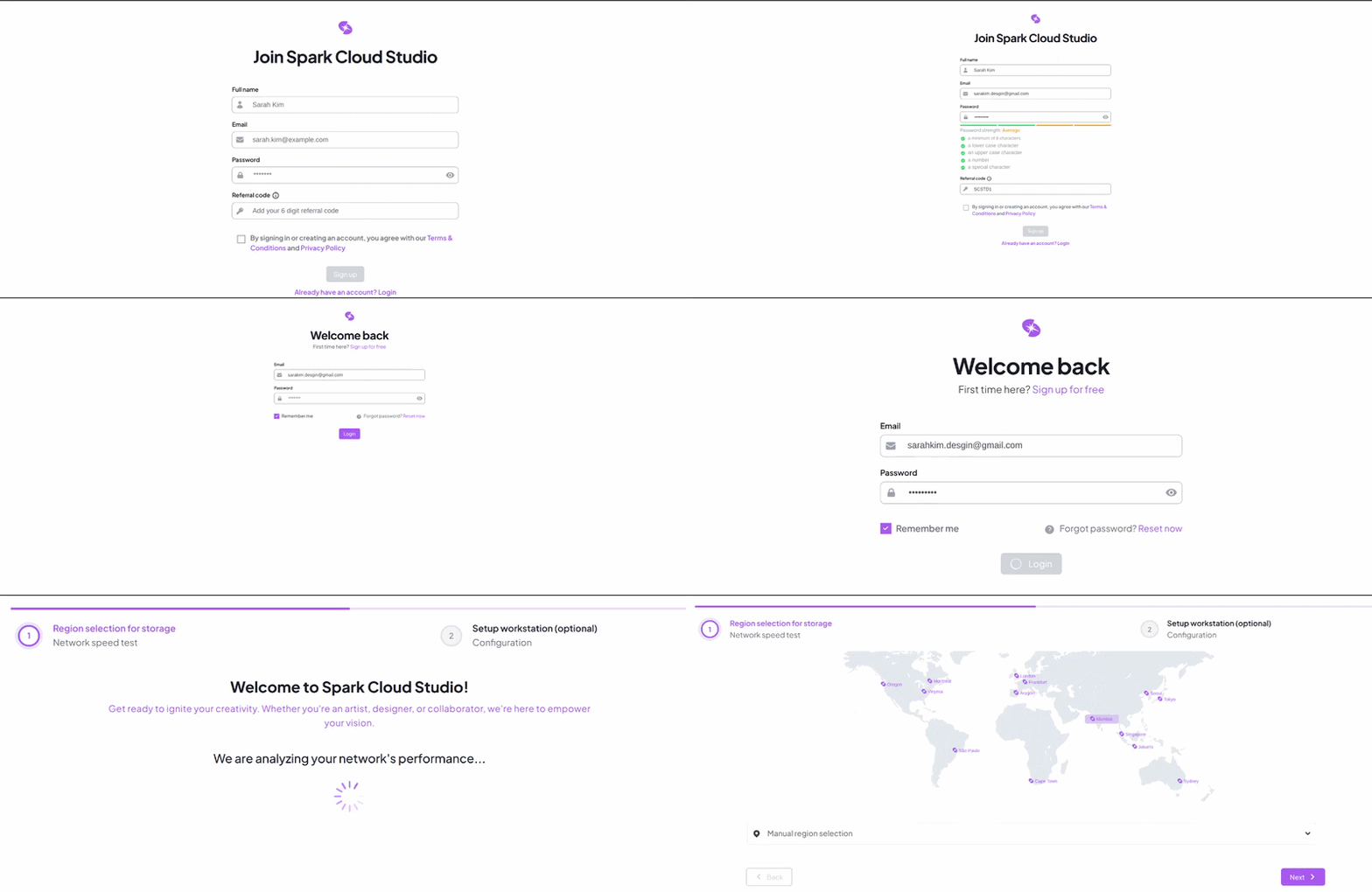
Install: Run the downloaded installerPlease allow the administrator permission requested by Spark during installation. A reboot may be required during installation on Windows.
-
Activate: Verify your account
-
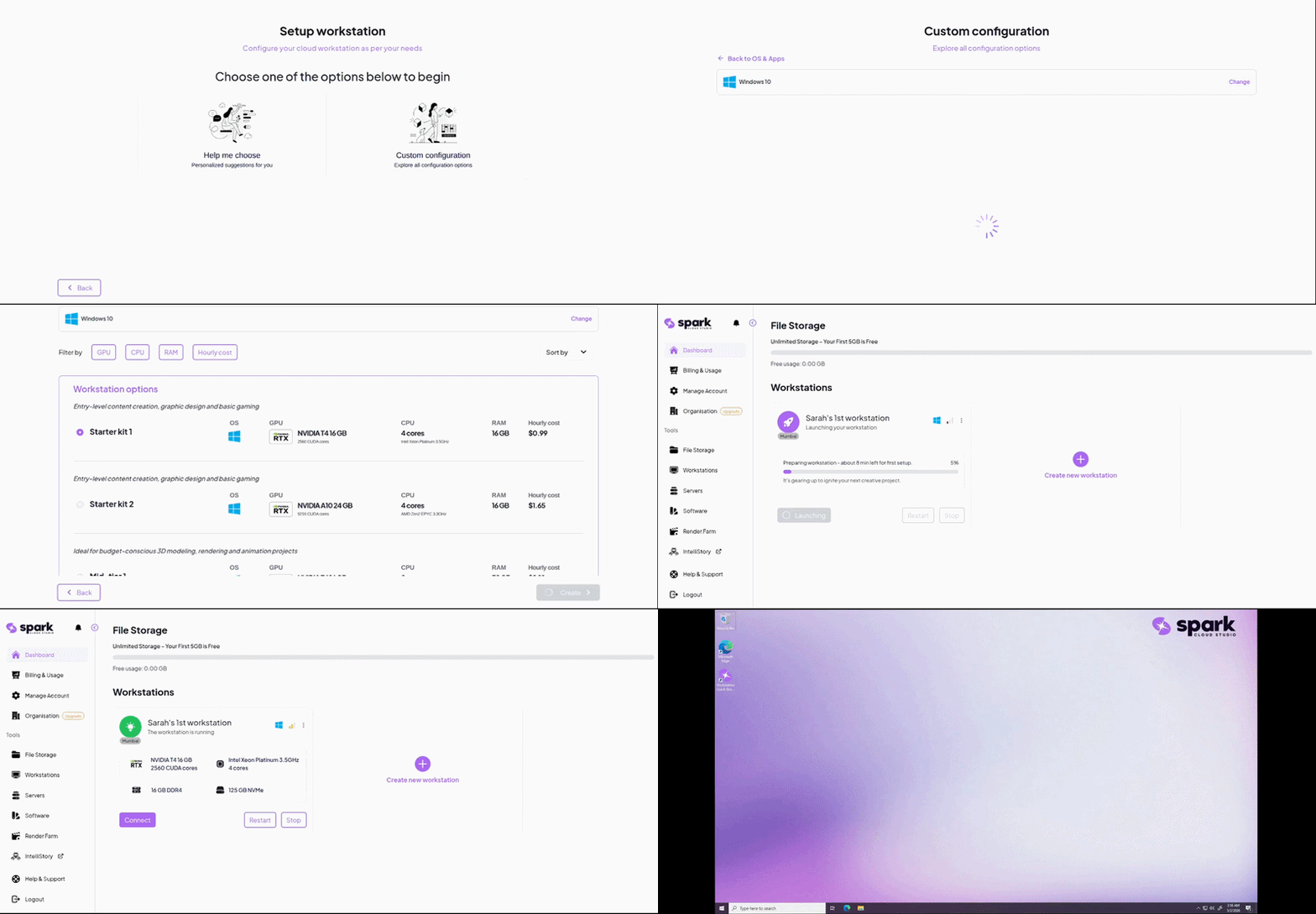
Create: Launch your workstationYour first workstation launch can take slightly longer due to initial setup and configuration. Future launches will be quicker.
Sync & Manage Files
Your local workflow, mirrored to the cloud.
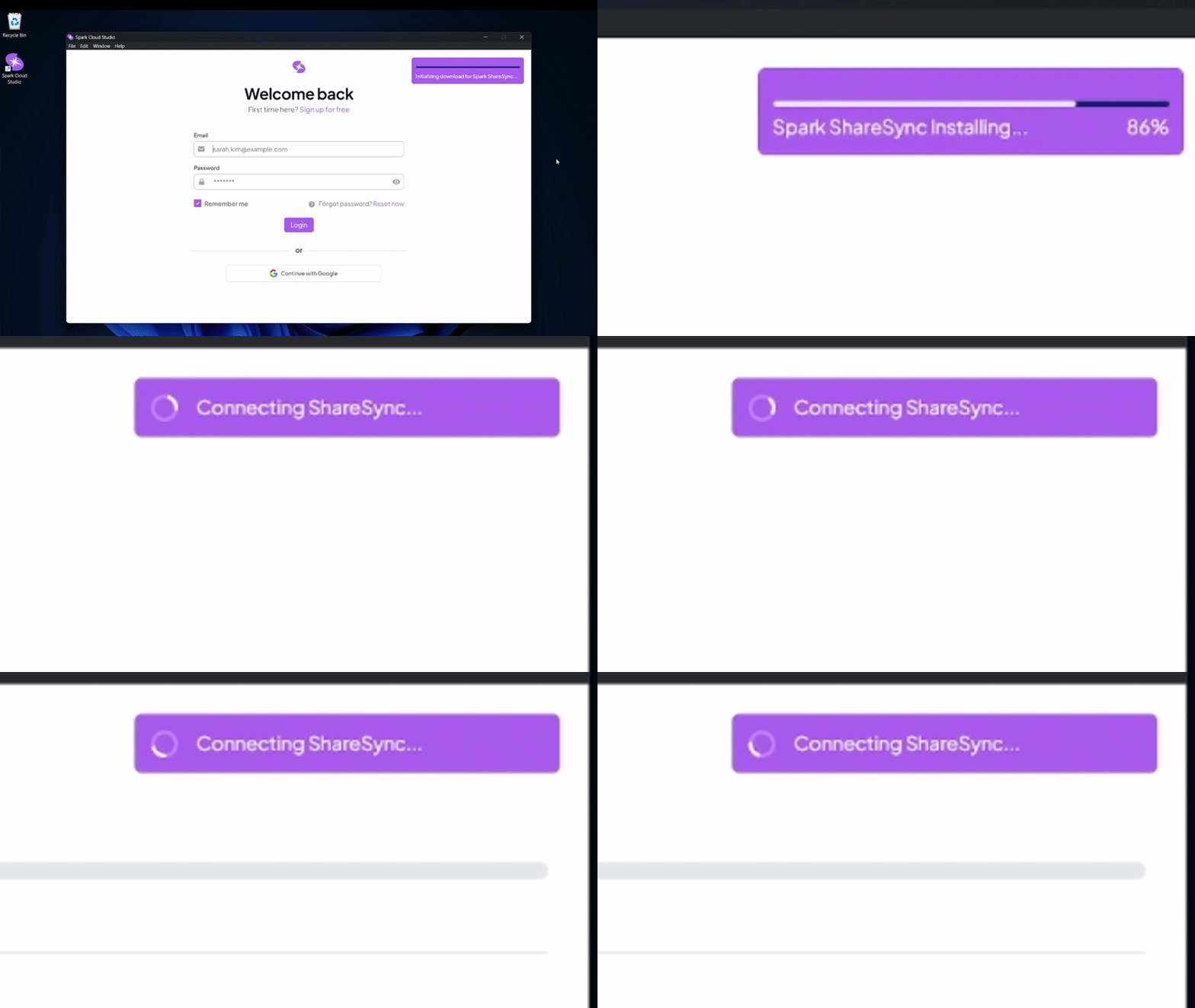
- Setup: ShareSync auto-configuresYou may be asked to allow ShareSync permissions in your system settings. These prompts are normal and required for file syncing and system integration.
- Sync: Sync files automatically
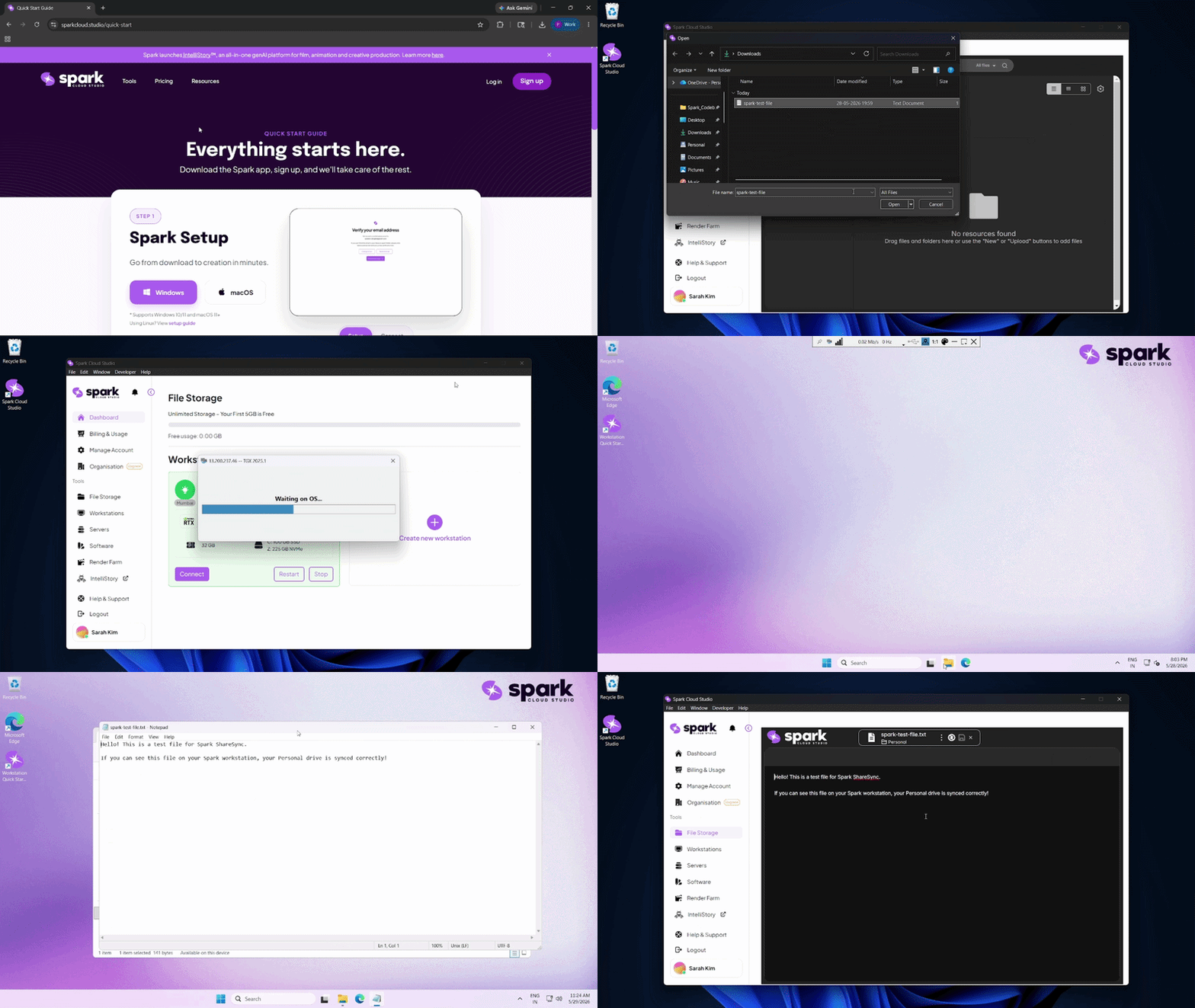
Download this small text file and upload it via the File Storage tab in your app.
Get Test FileOn your workstation, open the Personal Drive. If the file is there, your sync is active!
ShareSync
Unlimited File StorageShareSync provides secure, everywhere access to your files across all your Projects between Spark workstations, render farm and signed-in devices, including laptops, mobiles and tablets.
File Explorer → Spark ShareSync
Finder → Spark ShareSync
~/Spark\ ShareSync
Local Storage (System Drive)
Workstation OnlyFiles saved directly to the system drive of each Spark workstation. These files are not backed up and are not available on other workstations or devices.
This PC → Windows (C:)
/
Temporary Storage
Deleted on shutdownUltra-high-speed NVMe physically attached to each workstation. Data survives reboots but is permanently deleted when the workstation is shut down.
This PC → Temporary Storage (Z:, Y:, X:, ...)
/mnt/nvme1, /mnt/nvme2, ...
You're all set!
You're now ready to create, connect, and collaborate from anywhere.
Need more help?
Explore our detailed documentation or reach out for direct support.